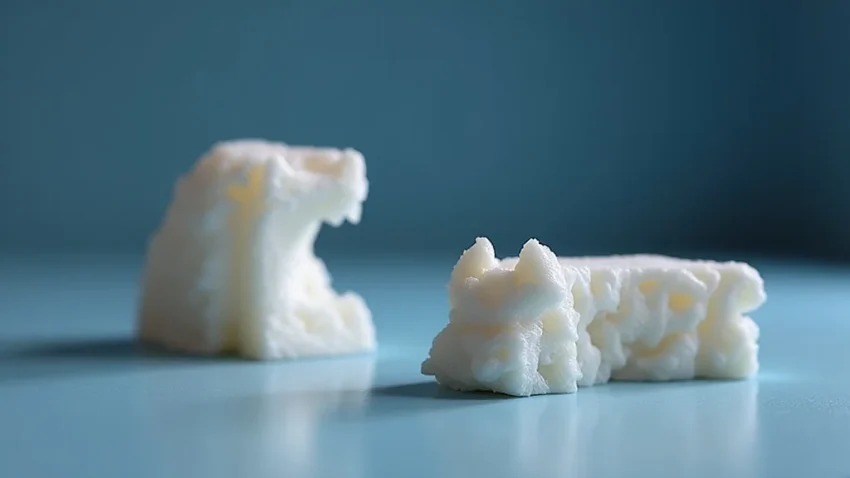
Remember that excitement when you got your first 3D printer? The possibilities seemed endless! But then reality hit – the first print failed, leaving you with a blob of plastic and a frustrating experience. That’s where a 3D printer test print comes in. This guide will walk you through the essential steps to ensure your initial prints are successful and set you up for 3D printing success, covering everything from initial setup to troubleshooting common problems. You’ll learn how to fine-tune your settings, explore different test prints, and identify areas for improvement, helping you minimize wasted filament and maximize your printing enjoyment.
Key Takeaways
- Learn the importance of 3D printer test prints and their role in ensuring print quality.
- Understand how to select appropriate test prints for different 3D printer types and materials.
- Discover essential calibration and adjustment processes to optimize your printer’s performance.
- Gain insight into recognizing and resolving common printing issues through test print analysis.
- Get tips on the importance of proper bed adhesion and filament selection for successful prints.
- Explore advanced techniques, including temperature and speed adjustments, for high-quality results.
Getting Started with Your 3D Printer Test Print
The first step in any 3D printing adventure is making sure your machine is ready to go. This involves a few key steps to establish a solid foundation for your printing experience. The most important initial task is to make sure your 3D printer is assembled according to the manufacturer’s instructions. Ensure all components are securely attached, the frame is stable, and there aren’t any loose parts. Check the belts, which need to be taut enough to transmit the motion of the motors, but not so tight that they impede movement. Another basic but important point is to ensure that your printer is in a stable location, away from direct sunlight, drafts, and extreme temperatures.
Leveling Your 3D Printer Bed
Bed leveling is an essential aspect of getting quality prints. It ensures that the first layer of your print adheres properly to the build plate. An uneven bed can lead to problems like the nozzle being too close, resulting in melted plastic accumulating and forming a blob, or being too far, resulting in the print not sticking at all. Most 3D printers now come with auto-bed leveling systems, which use a sensor to automatically measure the distance between the nozzle and the bed at different points. Manual bed leveling usually involves adjusting the screws under the print bed while using a piece of paper or a feeler gauge to measure the distance between the nozzle and the bed. It’s important to take your time and do this carefully, as incorrect leveling is one of the most common causes of printing issues.
- Importance of Bed Leveling: Proper bed leveling ensures the first layer of plastic adheres correctly to the build plate. This is vital for all subsequent layers to build on. Without a level bed, the nozzle might be too close or too far, which can lead to poor adhesion, warping, or even damage to the print bed.
- Auto-Leveling Systems: Many printers have auto-leveling systems. These are helpful but still might require occasional adjustment. These systems use a sensor to measure the bed’s surface and automatically compensate for any unevenness.
- Manual Bed Leveling: Manual leveling typically involves adjusting the screws beneath the print bed while using a piece of paper or a feeler gauge to measure the distance between the nozzle and the bed. The goal is to set the nozzle to the right height for the initial print layer.
- Methods for Bed Leveling: The paper test involves sliding a piece of paper between the nozzle and the bed, adjusting the bed height until the paper can be moved with slight resistance. A feeler gauge can provide a more precise measurement. It allows for a precise measurement of the gap between the nozzle and the print bed.
Good bed adhesion can be achieved with the correct Z-offset distance setting. This is the precise distance between the nozzle and the bed. When set properly, the melted plastic will be slightly squished onto the bed surface. This helps the plastic fuse well onto the bed surface and increases the likelihood of a successful print.
Auto-leveling typically reduces the need for frequent manual adjustments, simplifying the setup process. However, it’s essential to understand that auto-leveling systems can still benefit from fine-tuning. This includes checking the accuracy and functionality of the sensor, as well as adjusting the Z-offset to ensure the best possible first layer.
This process takes more time and attention but allows for a more personalized setup. When leveling manually, it’s critical to move the nozzle across several points of the bed surface. This confirms that the bed is level in all parts of the build volume, which leads to better prints.
The feeler gauge method provides more consistent results than the paper test, especially for materials that need an extremely thin first layer. Proper bed leveling ensures that the initial layer adheres firmly to the print bed. This results in the final product being of excellent quality.
Loading and Selecting Filament
After bed leveling, the next important step is loading and selecting the right filament. There are many different filament types, each with its own specific properties and needs. The first step involves carefully inserting the filament into the printer. This should be done based on the instructions for the specific printer. After loading the filament, you need to set the correct printing temperature. The ideal temperature depends on the type of filament you are using. The temperature is critical to ensure proper melting and extrusion without causing the filament to jam in the hot end or to overheat and degrade.
- Filament Types: PLA (Polylactic Acid) is a user-friendly filament, perfect for beginners due to its low printing temperature and low tendency to warp. It’s great for detailed prints and is available in many colors. ABS (Acrylonitrile Butadiene Styrene) is more durable and resistant to temperature, making it suitable for functional parts. However, it requires a heated bed and a controlled environment to reduce warping. PETG (Polyethylene Terephthalate Glycol) offers a mix of the properties of both PLA and ABS, providing good durability, flexibility, and ease of printing.
- Proper Loading Process: Carefully feed the filament into the printer’s extruder, following the printer’s specific instructions. Once the filament is inserted, heat the nozzle to the recommended temperature for the filament. This will melt the filament and allow it to be pushed through the nozzle.
- Temperature Settings: Correct temperature settings are important for different filaments. Too low can cause the filament to not melt and extrude properly, leading to incomplete layers and poor adhesion. Too high can cause the filament to become too runny, leading to oozing and stringing.
- Filament Storage: Store filaments in a dry, cool place to prevent moisture absorption, which can cause bubbles and poor print quality. Using airtight containers with desiccant packs can significantly extend the life and quality of your filament.
The type of filament you choose affects the overall quality of the print and its intended use. Using the correct type helps achieve the best possible finish and durability for your project. Consider the type of object, its intended use, and environmental factors when selecting filament.
Make sure the filament is fully loaded and properly seated in the hot end to prevent printing issues like clogging or filament starvation. Proper loading ensures a consistent flow of material throughout the printing process. Regularly check the filament feeding mechanism to make sure that the filament is not obstructed.
Consult the filament manufacturer’s recommendations for optimal printing temperatures. Experimenting with temperature settings is essential to achieve the perfect balance. Adjusting the temperature in small increments can make a big difference in print quality.
Proper filament storage is key to extending its usable life and maintaining its print quality. Keeping filament dry and away from heat preserves its properties and allows for more consistent and predictable prints. Investing in storage can save both money and wasted time.
Choosing Your First 3D Printer Test Print
Choosing the right 3D printer test print is vital for assessing your printer’s performance. The selected prints are usually small models designed to highlight specific aspects of the printing process. These models help you assess different settings and resolve potential issues. The first 3D printer test print is crucial because it gives an opportunity to fine-tune your printer’s settings. When you understand the tests and how to utilize them, you can improve your chances of getting a good print.
Recommended Test Prints
- Calibration Cube: This is a standard test print that helps calibrate your printer and assess dimensional accuracy. It typically measures 20mm on each side. After printing, you can measure the cube with calipers to ensure the dimensions are accurate.
- Bridging Test: A bridging test prints horizontal lines over a gap, and it can help determine your printer’s bridging capabilities. It can also help evaluate the printer’s ability to print without supports and assess how it handles overhangs.
- Overhang Test: An overhang test prints various angles of overhangs, allowing you to identify the angles your printer can successfully print without supports. It helps to find out the limits of your printer in terms of printing angles, which is important for designing parts that require overhangs.
- Filament Flow Test: A filament flow test helps to calibrate the amount of filament extruded by your printer. It involves printing a simple test object that allows you to see how the material behaves at different flow rates.
The calibration cube is an excellent starting point for 3D printer calibration. It can help you find out if your printer is able to produce parts that match the dimensions you have designed. By checking dimensions with calipers and making necessary adjustments, you can be sure that your prints match the specified measurements.
By measuring the quality of the bridges and the distance they can span without sagging, you can optimize your printer settings. This is key for printing models with complex features that don’t need supports, such as gaps or overhangs. Better bridging leads to higher-quality print results.
By testing your printer’s ability to print overhangs at different angles, you can find the maximum overhang angle for your setup. This helps you to make design decisions, minimizing support structures and increasing print quality. It can also help to fine-tune cooling settings for overhangs.
By adjusting your printer’s extrusion multiplier, you can ensure that the right amount of filament is being extruded for each layer. This can resolve common issues, like gaps between lines and over-extrusion, enhancing the structural integrity and aesthetics of the final print. This is especially helpful when switching filaments.
Test Print Variations
The available 3D printer test print options are almost endless, each designed for a different purpose. Many websites provide a range of free, downloadable test prints. It is worth experimenting with different test prints to get a sense of what your printer is capable of. It’s also useful to learn how to change settings and troubleshoot issues. Here are some different types of variations that you can try to assess performance.
- First Layer Test: This print emphasizes the first layer, which is essential for print success. It typically consists of a large, flat surface that shows how well the first layer adheres to the build plate. It helps assess the bed leveling accuracy and the distance between the nozzle and the bed.
- Stringing Test: Stringing refers to thin strands of filament that are left between different parts of a print. The stringing test is a quick and simple print designed to test the retraction settings. It usually consists of a few vertical towers with small gaps.
- Temperature Tower: A temperature tower is a model with multiple sections, each printed at a different temperature. It is specifically designed to test the print quality across a temperature range. Each section is printed at a different temperature, usually ranging from the minimum to the maximum recommended for your filament.
- Support Test: This print assesses your printer’s ability to print support structures. It’s used to test the support structures and to see if they can be removed easily without damaging the main print.
The First Layer Test helps you find and adjust printing parameters to ensure good adhesion, like temperature, bed level, and flow. By optimizing the first layer, you can decrease the odds of warping or print failures, therefore saving time and resources. Ensure your nozzle is not too far or too close to the bed.
By adjusting the retraction settings, you can minimize or eliminate stringing. This improves the overall quality of your prints and helps to achieve cleaner prints. Retraction settings are one of the most important settings to change. Retraction is the process where the printer pulls the filament back into the nozzle to prevent oozing.
By assessing the quality of each section, you can discover the best temperature for your specific filament. Finding the right temperature for your filament is essential for getting the best print results. This ensures that the filament melts correctly and is extruded without any issues. This helps to prevent under-extrusion, warping, and poor layer adhesion.
By adjusting the support structure settings, you can improve the quality and printability of complex models. These settings can include support density, support angle, and the distance between the support and the printed object. This will minimize post-processing and ensure that supports are easy to remove and leave the print surface clean.
Calibrating and Adjusting Your 3D Printer for Test Prints
After you have selected your 3D printer test print, the next step is to ensure your machine is accurately calibrated. Calibration is critical for ensuring your printer is working at its best. There are several steps you can take to make sure that the printing process runs smoothly and that you get the best possible results. Accurate calibration will contribute to print accuracy, minimize the risk of problems, and will ensure consistent results in your prints.
Slicer Settings
The slicer is a software program that converts 3D models into instructions that your 3D printer can read and understand. Slicer settings affect many aspects of the print. The settings you configure directly affect print quality, speed, and overall success. A slicer also adds support structures and generates the G-code that the printer uses to create the object.
- Layer Height: The height of each layer of plastic. Lower layer heights will produce smoother prints but require more time to print. Higher layer heights will print faster, but may result in less detailed prints.
- Print Speed: This controls the speed at which the printer moves, affecting the print time. Faster print speeds will reduce print time, but may lead to reduced print quality. Lower print speeds can improve print quality, but will extend print time.
- Temperature: This controls the temperature of the nozzle, which influences how well the filament melts and bonds to previous layers. The temperature setting varies based on the type of filament. Incorrect temperatures can lead to poor layer adhesion, warping, and other issues.
- Retraction Settings: Retraction settings control the amount of filament retracted and then re-extruded when the nozzle moves between different parts of the print. Proper retraction settings will reduce stringing and improve print quality. Improper settings can lead to blobs and defects.
Adjusting the layer height is one of the most effective ways to customize print quality. Lower layer heights are best for detailed objects, while taller layer heights are best when speed is more important. The right layer height depends on the type of object and the needed level of detail.
Choosing the correct print speed will help balance the speed and quality requirements. The right print speed will depend on the printer, the filament, and the complexity of the print. It’s recommended that you begin with a lower print speed and increase it gradually until you reach a balance.
The correct temperature is important for successful printing, so refer to the filament manufacturer’s recommendations. Print quality is very sensitive to temperature, so be sure to start at the low end of the recommended temperature range and work your way up. Adjust in small increments to get the best results.
Correct retraction is important for getting cleaner prints with fewer defects. Retraction settings, such as retraction distance and speed, need to be adjusted to minimize stringing and oozing. Each printer and filament requires different retraction settings.
Bed and Nozzle Temperature Adjustments
Bed and nozzle temperature adjustments are important factors to consider when fine-tuning your 3D printer test print. The bed temperature impacts the adhesion of the initial layer, while the nozzle temperature influences the melting of the filament and its extrusion. To get the best results, you need to adjust these temperatures according to the filament type and the printing environment. Incorrect temperatures can lead to several problems, including warping, poor layer adhesion, or nozzle clogging.
- Nozzle Temperature Calibration: Begin by checking the recommended temperature range for your filament. Then print a temperature tower to see how your filament reacts to temperature changes. Watch how well the filament extrudes and adheres to the build plate.
- Bed Temperature Calibration: The bed temperature helps with the initial layer adhesion. Higher bed temperatures usually promote better adhesion. Start with the recommended bed temperature for your filament. If the corners are warping, slightly increase the temperature.
- Temperature Settings for PLA: PLA typically prints with a nozzle temperature from 180 to 220°C and a bed temperature from 20 to 60°C. Lower temperatures will produce more detailed prints, but it may cause warping. High temperatures might cause the print to lose its shape and details.
- Temperature Settings for ABS: ABS typically prints with a nozzle temperature from 230 to 250°C and a bed temperature from 80 to 110°C. A heated bed is essential when printing with ABS to reduce warping. It’s often printed inside an enclosed environment.
Adjust the temperature in small increments, about 5 degrees at a time, to find the best temperature for your particular filament. Check for oozing, stringing, and the level of detail. The correct nozzle temperature is essential for getting the perfect print.
Bed temperature plays an important part in avoiding issues like warping and bed adhesion. The bed surface needs to be completely level and kept clean. Bed temperatures can be adjusted for the environment. Too much heat can also lead to issues.
PLA is a user-friendly material for beginners. The low print temperature makes it easier to work with. Proper temperature settings will help get the best results for your prints.
ABS is a more demanding material, so controlling temperature is very important. Temperature stability is crucial to achieving quality prints with ABS. Correct temperatures result in better durability and quality.
Identifying and Resolving Common 3D Printing Issues
Even with careful preparation and calibration, issues can happen. Knowing how to recognize and address common problems is an important skill in 3D printing. Many problems can be identified by the 3D printer test print, and solving those problems will improve your printing experience. Identifying and fixing the problems will help you make better prints and minimize wasted time and resources.
Common Problems
- Warping: The corners or edges of the print lift off the bed. This is usually caused by uneven cooling and the contraction of the plastic. This commonly occurs when printing with ABS or other filaments that cool and contract significantly.
- Stringing: Thin strands of filament are left between parts of the print. This usually occurs because the filament oozes out of the nozzle while the printer moves. This can also happen when the nozzle temperature is too high.
- Poor Layer Adhesion: The layers of the print do not stick together properly. This can happen if the nozzle temperature is too low, the print speed is too fast, or the bed is not level. Poor layer adhesion can affect the structural integrity of the print.
- Over-Extrusion: Too much filament is being extruded, causing blobs and defects. This happens if the flow rate is too high or the nozzle temperature is too high. Over-extrusion makes the prints less dimensionally accurate.
Reduce warping by ensuring the bed is level and clean, increasing bed adhesion. Using a brim or raft can help secure the print to the bed. Enclosing the printer and increasing the bed temperature can also help.
Reduce stringing by adjusting the retraction settings. Lower the nozzle temperature. Increase the travel speed and use a higher retraction speed. This can minimize filament oozing and enhance print quality.
Adjust the temperature. Slow down the print speed and make sure your bed is properly leveled. It is also important to verify that the first layer is properly squished onto the bed. All of these adjustments will help improve layer adhesion.
Calibrate your printer’s flow rate, reduce the nozzle temperature, and clean or replace the nozzle if clogged. Reducing the amount of filament extruded can eliminate issues related to over-extrusion.
Troubleshooting Strategies
Troubleshooting is part of the 3D printing process. When you face problems during a 3D printer test print, it is important to troubleshoot the situation. Identifying the problem and applying the correct solution is essential for improving print quality. Testing and evaluating your prints will help you refine your skills and make better models.
- Bed Adhesion: Ensure the build plate is clean and level. Use adhesive materials like glue stick or painter’s tape to improve adhesion. Increase the bed temperature. Adjust the first layer height to ensure that the nozzle is properly positioned.
- Extrusion Issues: If you find the material is not being extruded properly, check if the nozzle is clogged. Adjust the nozzle temperature to ensure it’s within the range recommended for your filament. Make sure the filament is loaded and advancing correctly. Inspect the extruder gear for any issues.
- Mechanical Issues: Check your belts. Inspect the belts and tighten them if they are loose. Ensure the frame is stable. Lubricate the moving parts. This includes the rods, linear bearings, and threaded rods. Verify all connections and ensure they are secure.
- Slicer Settings: Fine-tune your slicer settings to address specific issues. Adjust the print speed, layer height, and temperature to optimize your prints. Experiment with retraction settings. The slicer settings have a significant effect on the final results.
Good bed adhesion is essential for the first layer, which provides the foundation for the entire print. Good bed adhesion is key to a successful print. A clean, level bed and adhesive will give you the best chance of a successful print.
Extrusion problems often result in incomplete layers. Careful troubleshooting can quickly resolve these issues, ensuring a consistent filament flow. Regular maintenance of the nozzle and extruder can reduce the likelihood of extrusion problems.
Mechanical problems can lead to vibrations, which can affect the print quality and precision. Regular inspection and maintenance are vital for keeping your 3D printer in good condition. Addressing mechanical problems quickly is crucial.
The slicer settings are important, and knowing how to change them can help improve print quality. By adjusting the settings, you can greatly improve the overall performance of the printer. Practice with various settings to see which work best.
Common Myths Debunked
Myth 1: 3D printing is only for experts.
Answer: 3D printing is simpler than it used to be. Many printers are designed for beginners, and numerous resources are available online to guide new users. Learning to use a 3D printer test print to troubleshoot issues is a valuable starting point. With a little practice, anyone can learn to 3D print.
Myth 2: Higher resolution always equals better quality.
Answer: Higher resolution (lower layer height) often results in smoother prints, but it does not always equal better quality. Increasing resolution also increases print time. It also highlights any other underlying issues. Balance is key, and the right layer height is based on the specific print requirements.
Myth 3: All filaments are the same.
Answer: Filaments come in many types, each with its unique properties and requirements. PLA is easy to use, while ABS is durable. Some filaments require specific temperatures. Choosing the right filament is based on its intended use.
Myth 4: Expensive printers always produce better results.
Answer: While advanced and costly printers offer advanced features, price does not guarantee a better result. Budget printers can produce quality prints when calibrated correctly. Many users are very successful using more affordable machines. It’s often about knowing how to set up the printer and choosing suitable settings.
Myth 5: 3D printing is always perfect.
Answer: 3D printing is not always perfect, and failures happen. There can be issues with adhesion, warping, and layer adhesion. However, these issues can be reduced with troubleshooting and adjustments. It is important to know how to resolve them.
Frequently Asked Questions
Question: What is the purpose of a calibration cube?
Answer: A calibration cube is used to evaluate the dimensional accuracy of your 3D printer and to calibrate your settings for more precise prints.
Question: How do I know if my print bed is level?
Answer: You can use the paper test or a feeler gauge to measure the distance between the nozzle and the build plate at multiple points.
Question: Why is my first layer not sticking?
Answer: The first layer might not be sticking due to an unlevel bed, incorrect nozzle height, or a dirty build plate. Also, ensure you have the right bed temperature setting.
Question: What causes stringing in 3D prints?
Answer: Stringing is caused by the filament oozing from the nozzle while the printer is moving. It can be reduced by adjusting retraction settings, reducing the nozzle temperature, and increasing the travel speed.
Question: What should I do if my print warps?
Answer: To prevent warping, ensure your bed is level and clean, use a brim or raft, adjust bed temperature, and consider using an enclosure for printing.
Final Thoughts
Mastering the art of 3D printer test print is essential for anyone starting in 3D printing. It is the crucial first step for setting up your 3D printing process. Understanding what a test print is, the best methods to choose the right one, and how to calibrate the printer will ensure the best start. From initial setup to final prints, taking the time to test your printer will make the process better. By using the right test prints, you will be able to refine your settings, identify the problems, and resolve them. This is the cornerstone of 3D printing and will transform the experience. Continue experimenting, keep trying different filaments, and be open to making adjustments. With patience and practice, you will be well on your way to becoming a skilled 3D printer.